Create a Data Connection
You can connect to a cloud data provider such as Snowflake, Amazon Athena or Google BigQuery, or for a simple proof of concept or one-off analysis you can upload a data file. For this walkthrough we’ll use a data file.
Uploaded files should have one record per line with fields separated by a delimiter character such as a comma or tab, and should also include a header row with column names. Any dates/datetimes should be formatted as ISO-8601 strings e.g. 2024-01-15 15:27:15
New organisations have a Data Source called “File Uploads” which can be used for this
Open the File Uploads data source by clicking on it in the left-hand navigation menu:
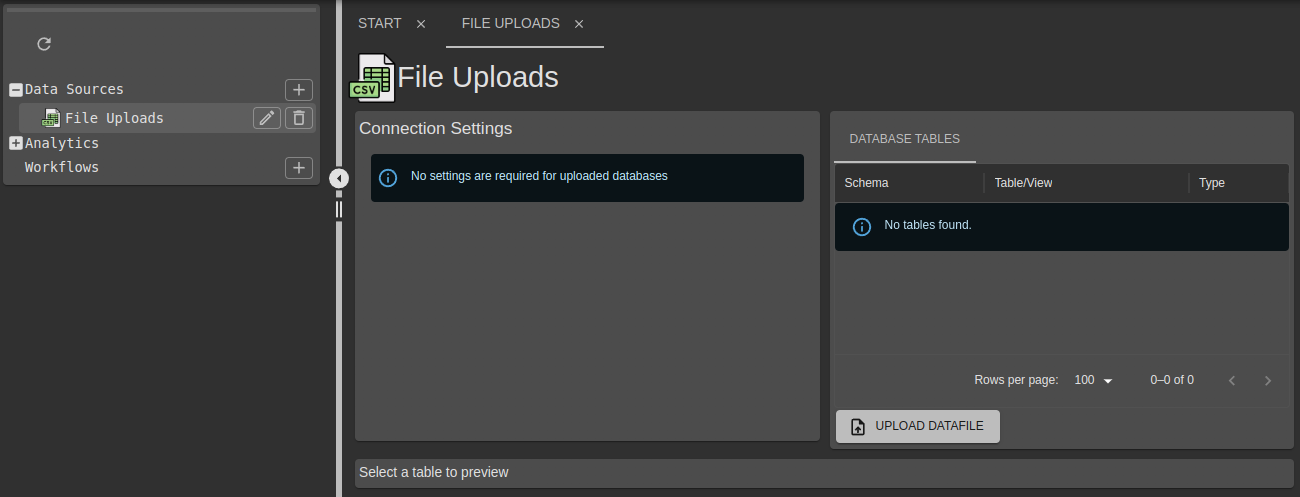
Upload this sample datafile using the “Upload File” link:
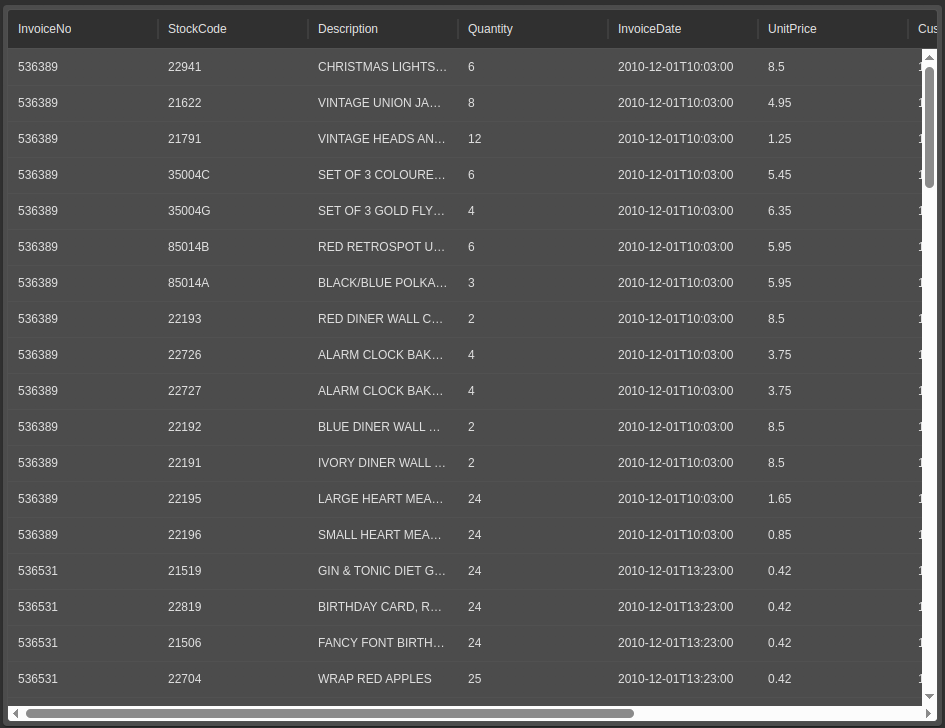
Once uploaded, select the table in the list of available tables to preview the data. It should look something like this:
Create a new Market Basket Analysis
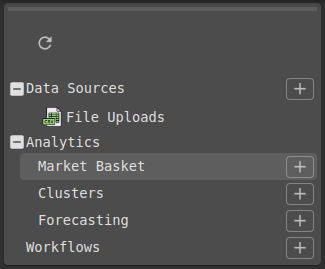
Click the “plus” for Market Baset in the left-hand navigation menu:
Complete the analysis form using the chosen data file. Multiple items in the same transaction are grouped by the InvoiceNo field, and the items themselves are in the Description field. Once the fields are completed, a preview will load and should look something like this:
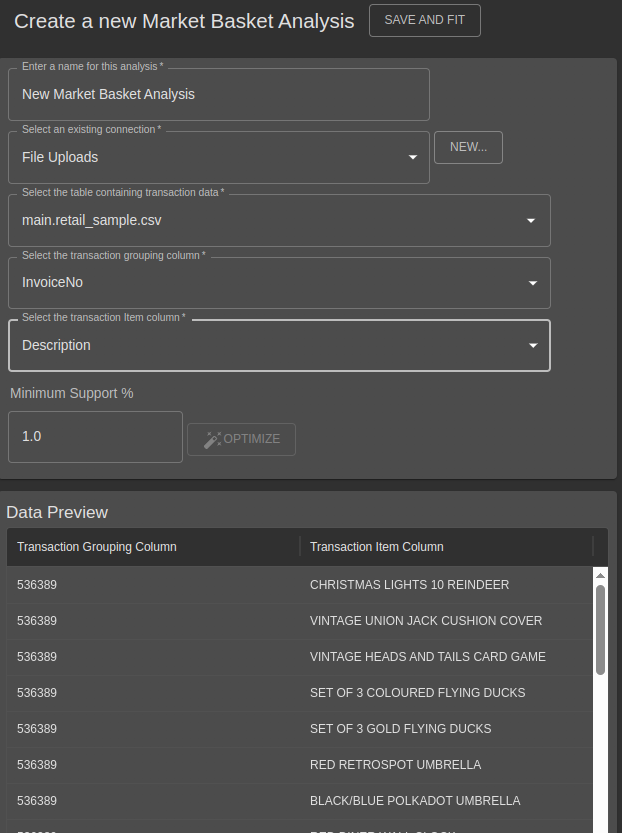
Click on “Save and Fit” to continue, and use the smallest available infrastructure size (this is just sample data).
Monitor the build process
Once saved, the analysis view will open in a new tab. It will be pending a model build at this point and so most of the tabs will be unavailable.
Models are built in a background process which may scale to thousands or even millions of records. You may need to check back later for very large datasets.
Once the model build is complete, the status will change to “Fitted” and the remaining tabs will become available.
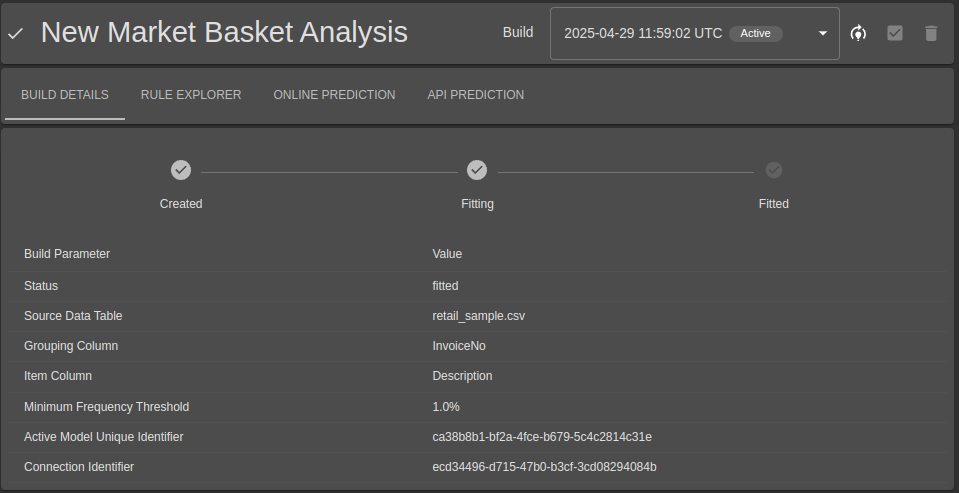
Explore rules and make predictions
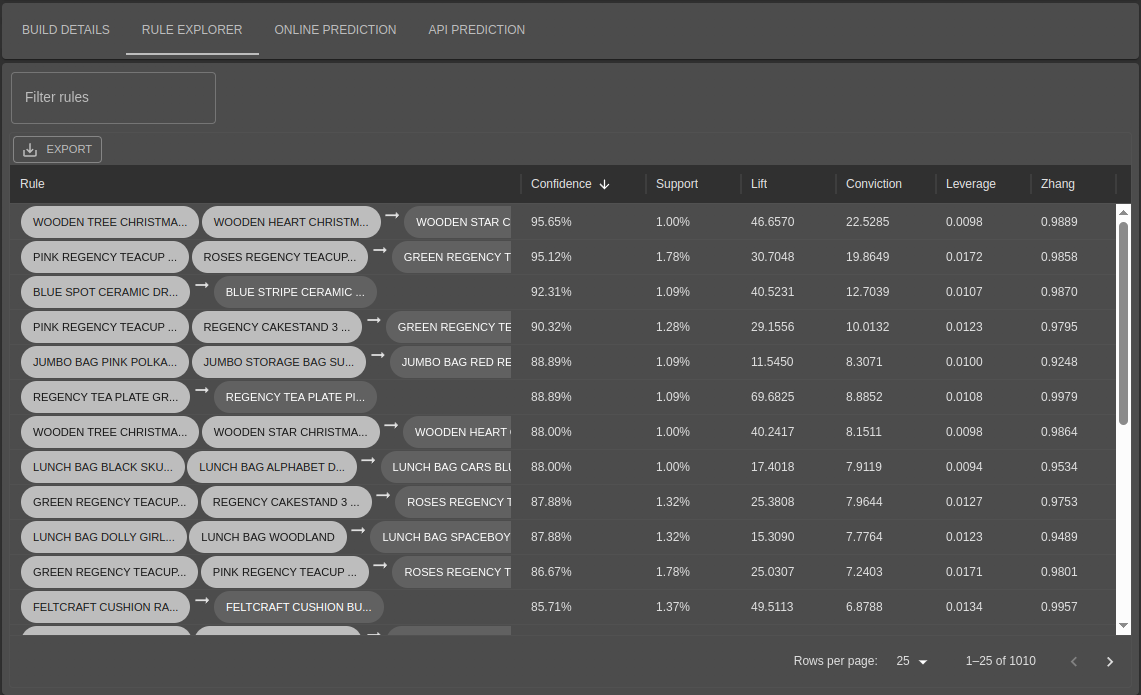
The Rule Explorer allows you to view, sort and filter the rules derived from the dataset. See Market Basket Analysis for details of all the available metrics and what they mean.
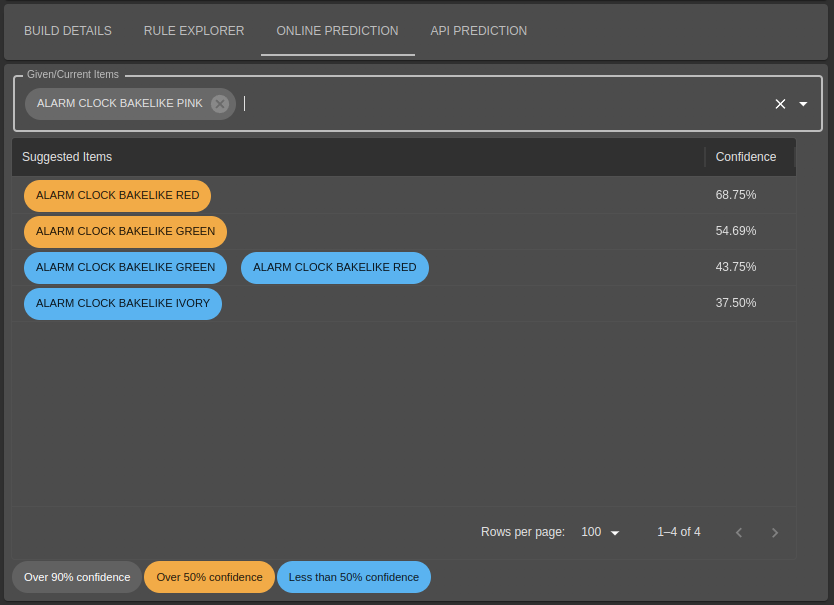
The “Online Prediction” tab allows you to make predictions from the user interface, for example if a current “basket” of goods contains the item “Alarm Clock Bakelike Pink”, suggested items are provided:
(Optional) Rename or delete the analysis
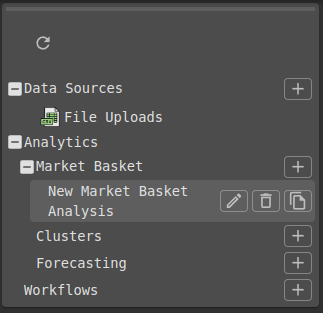
If you need to rename or delete an analysis once it is created, first select/highlight the analysis in left-hand navigation menu, and use the rename, delete or copy buttons: