
Create a new connection
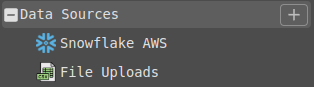
New connections can be added using the Plus button to the right of the Data Sources section in the left-hand naviation panel.
A “Create a new Connection” tab is opened.
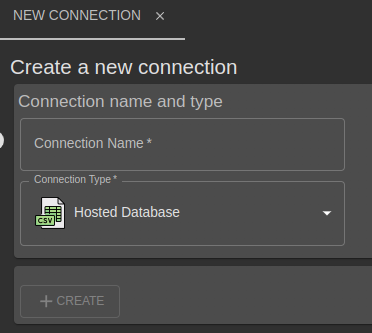
The form fields required to setup a new connection depend entirely on the chosen Connection Type. The “Hosted Database” type requires only a name and requires you to upload data files instead. To see the information required to connect use the guides below.
| Connection Type | Connection settings |
|---|---|
| Hosted Database | File Uploads |
| Amazon Redshift | Amazon Redshift |
| Amazon Athena | Amazon Athena |
| Snowflake | Snowflake |
| Google BigQuery | Google BigQuery |
If your own data source is not in this list, you can try to export your data to CSV format and upload it using the Hosted Database Option to perform a proof of concept. Then request that we add your connection type.
Request new connection types via your support representative
Database Metadata and Scanning
When creating a new connection, the list of available database tables will be initially empty. You must first use the Metadata Scanner to find available tables, views and their columns. Click “New Scan” from the Metadata scanner tab of the database table viewer to crawl all the available tables, determine their column types and take a sample of sample.
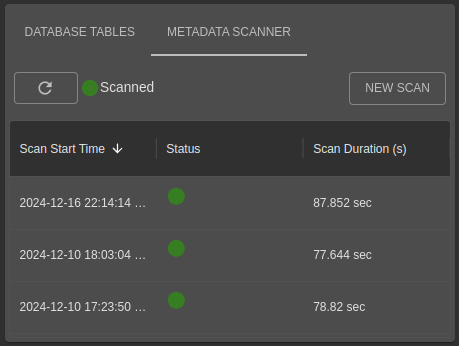
Depending on the number of tables in the configured database, it could take some time to scan them. Clicking “refresh” will update the UI with any tables scanned so far.
Viewing existing connections
Existing connections can be found by expanding the “Data Sources” section of the left-hand navigation menu. New connections can be added using the Plus button.
All new organisations have a “File Uploads” connection created automatically that require no configuration. This is a convenience to get started quickly by uploading data files, and can be deleted at any time.
If the connection is successful, a list of available tables and views will be loaded. In the case of Hosted Databases, an Upload Datafile button will be available.
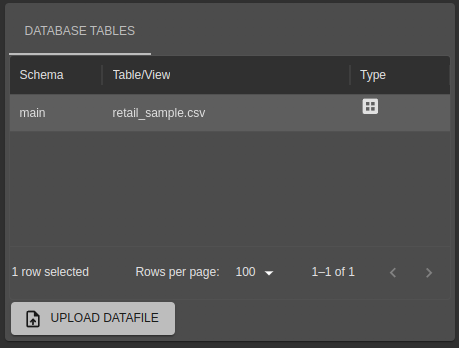
For more details on uploading data files, see File Uploads.
Table Lists
Selected a Table or View by clicking the row in the list of tables to load a small preview of data.
Data Preview
Select a particular table or view to preview a sample of records. For tables, this is usually quick, but for viewing containing ordering operations may take longer.
On SQL Engines that support a SAMPLE clause, this is used to get a representative set of records from across the table.
On database platforms that do not support SAMPLE, the preview is typically loaded using a LIMIT query and may not be representative of the whole table.
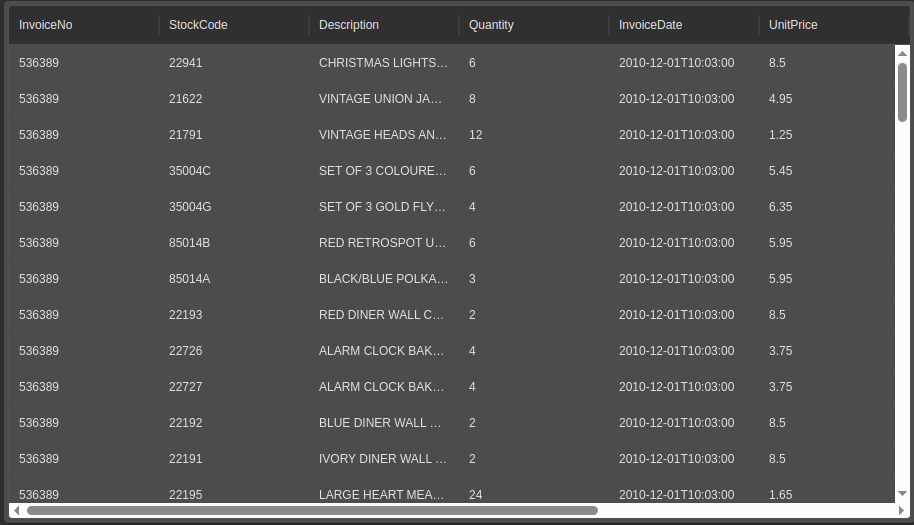
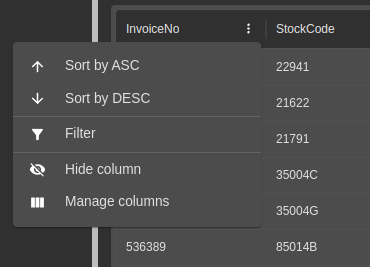
The columns in the table may be resized, shown/hidden, sorted and filtered using the hamburger menu when hovering-over the column headings.
Deleting a connection
- Select the data source to delete in the left-hand navigation menu.
- Click the delete icon
- A confirmation will be shown to double-check the name before permanently deleting the connection.
For Hosted Database connections, when the connection is deleted so are any data files previously uploaded to it.