
Creating a Connection
Click the “plus” button on the navigation menu next to “Data Sources”. Change the Connection Type to Amazon Athena.
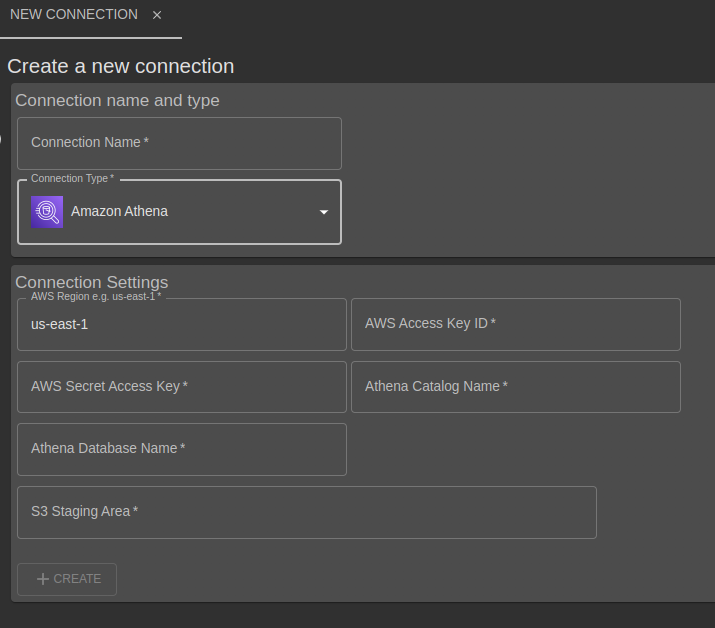
Complete the Connection Settings and click “Create”.
| Setting | Values |
|---|---|
| AWS Region | The AWS region that hosts the Amazon Athena database you want to use, e.g. us-east-1. A list of available regions for the Athena service can be found in the AWS Documentation |
| AWS Access Key ID | The access key ID for an existing AWS IAM user. |
| AWS Secret Access Key | The secret access key for the existing AWS IAM user. This secret key is stored in a secrets store using 256-bit AES-GCM encryption. You can reset a new value but never view the existing value once set. |
| Athena Catalog Name | This is sometimes referred to as the Data Source. Typically this is set to “AwsDataCatalog”, although your administrator may have created additional catalogs. You can look in the Amazon Console to view a list of available database names. 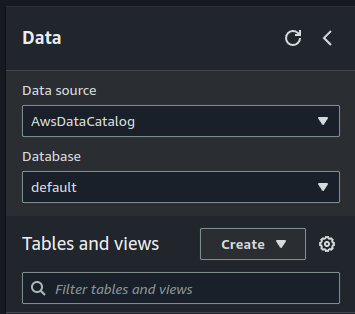 |
| Athena Database Name | The athena database name. You can look in the Amazon Console to view a list of available database names. |
| S3 Staging Area | An accessible S3 location where athena query results are placed. It may be useful to setup automatic rules on this area to remove files after a few hours or days to prevent it just growing indefinitely. |
A connection will immediately be made to check it works and to fetch the available data tables and views. The data connection is now available within any of the analysis types.
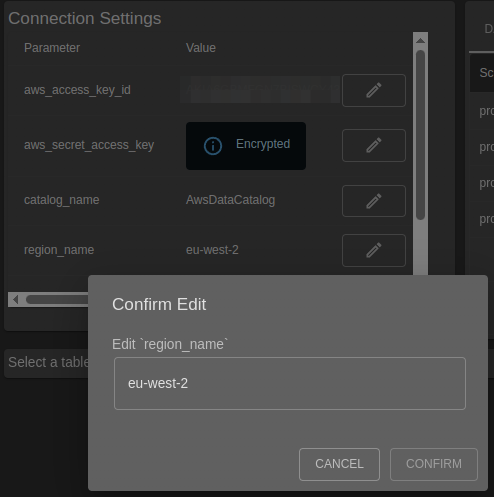
Editing an existing connection
Use the pencil icon to change an existing setting.
Required permissions
The IAM user associated with the access keys will need permission to read metadata and data from the Athena service, the Glue service (which provides the data catalog containing metadata and partition information) as well as S3 to access the query results.
As a starting point you can use the AmazonAthenaFullAccess policy and if necessary adapt it to your needs by further restricting the resources it can access.
Viewing tables and data
Once a connection has been established, use the general help in Creating and Managing Database Connections to view tables, views and data previews.
Deleting a Connection
Deleting a connection only removes the connection settings, the database itself isn’t changed.