
Creating a Connection
Click the “plus” button on the navigation menu next to “Data Sources”. Change the Connection Type to Amazon Redshift.
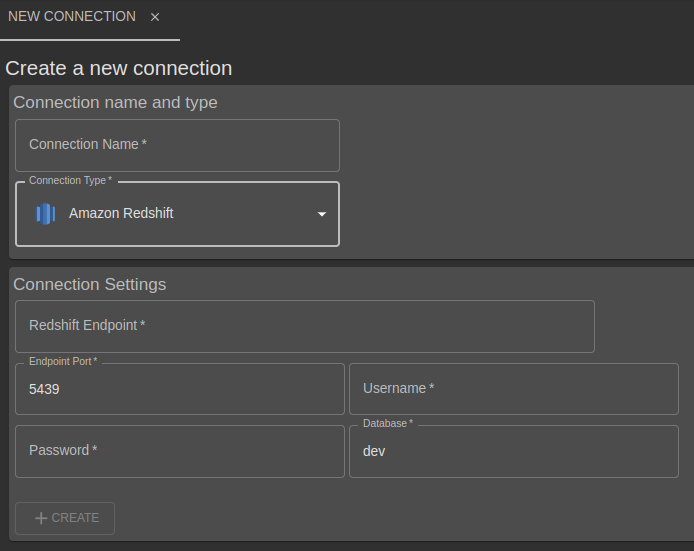
Complete the Connection Settings and click “Create”.
| Setting | Values |
|---|---|
| Redshift Endpoint | This may be a classic Redshift cluster endpoint or Redshift Serverless workgroup endpoint. The endpoint must be publically accessible. Typically it includes your workgroup, account and region information, for example ...redshift-serverless.amazonaws.com |
| Endpoint port | Typically this is 5439 but may have been changed by your administrator. |
| Username | Your redshift username. |
| Password | Your redshift password. |
| Database | The database name. New redshift clusters or serverless instances typically contain at least one database named “dev”. |
A connection will immediately be made to check it works and to fetch the available data tables and views. The data connection is now available within any of the analysis types.
We don’t support connecting using IAM roles or other methods. If you need that, contact your support representative.
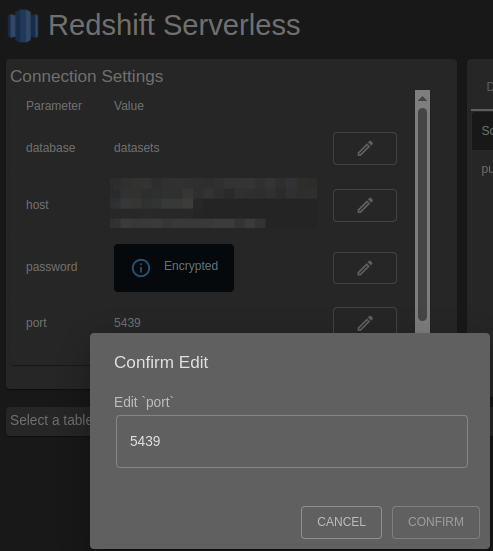
Editing an existing connection
Use the pencil icon to change an existing setting.
Required permissions
predictr.io only requires read-only access to your data, as well as the information_schema views in order to show available tables, views and columns.
Viewing tables and data
Once a connection has been established, use the general help in Creating and Managing Database Connections to view tables, views and data previews.
Deleting a Connection
Deleting a connection only removes the settings, the database itself isn’t changed.